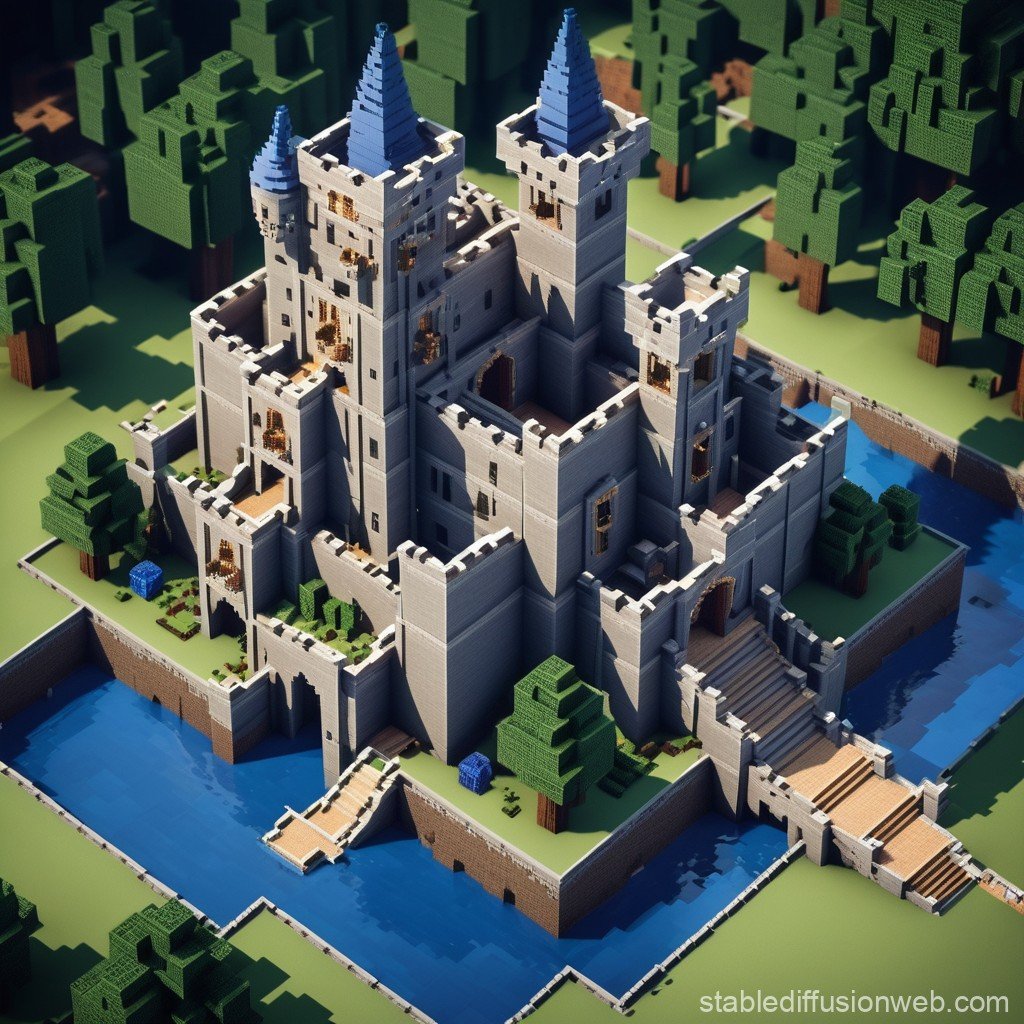
Ever gazed upon a truly monumental Minecraft build – a sprawling city, an intricate castle, or a functional redstone marvel – and wondered how players even begin to tackle such colossal undertakings? The secret often lies in Advanced Minecraft Blueprint Design & Creation. It's about moving beyond spontaneous in-game building to a world of meticulous planning, external tools, and systematic execution. This isn't just about placing blocks; it's about engineering your vision with precision and scale.
Whether you're dreaming of a hyper-realistic cityscape, a lore-rich RPG map, or simply want to elevate your personal building projects, mastering blueprint design is your gateway to unprecedented creative freedom and efficiency. You're not just building; you're designing a masterpiece, one precise block at a time.
At a Glance: Key Takeaways for Blueprint Mastery
- Go Beyond In-Game: Advanced blueprints leverage external tools for precision and scale that vanilla Minecraft building can't match.
- Design First, Build Second: Planning prevents costly rework and ensures your vision is fully realized.
- Essential Tools: The Bedrock Editor, Blockbench, and Chunker are powerful allies for design, custom asset creation, and world manipulation.
- Iterate and Refine: Don't expect perfection on the first try; continuous refinement is part of the process.
- Optimize Your Setup: Good hardware and an organized workspace significantly enhance productivity and enjoyment.
- Collaboration is Key: Large projects often benefit from shared blueprints and teamwork.
Why Go Advanced? The Blueprint Advantage for Serious Builders
Think of the difference between doodling on a napkin and architectural drawings. Both are designs, but one offers far more precision, scale, and clarity for execution. In Minecraft, an advanced blueprint serves as that architectural drawing. It's your comprehensive guide, detailing every block, every dimension, and every intricate detail before you even place the first virtual block in-game.
The benefits are transformative:
- Precision & Consistency: Eliminate guesswork. Every curve, every corner, every block type is pre-determined, ensuring your final build perfectly matches your vision.
- Scale & Ambition: Tackle projects previously deemed impossible. Large-scale builds become manageable when broken down into blueprint stages.
- Resource Efficiency: Know exactly how many of each block you need, minimizing wasted time on gathering or crafting excess materials. This is crucial for survival mode players.
- Collaboration & Communication: A detailed blueprint is a universal language for build teams. Everyone understands their role and the overall objective, leading to smoother, more coordinated efforts.
- Modularity & Reusability: Design components (like a specific tower module or a house type) once, then replicate them across your world.
- Experimentation Without Consequence: Test ideas, layouts, and block palettes in a design environment before committing hours of in-game building.
When you're ready to seriously Explore Minecraft blueprints and take your builds to the next level, understanding the "why" fuels the "how."
The Foundation: What Exactly is an Advanced Minecraft Blueprint?
At its heart, a Minecraft blueprint is simply a plan for a structure. But an advanced blueprint takes this concept and supercharges it. It's not just a sketch; it's often a multi-faceted digital artifact that might include:
- Detailed Schematics: Precise 3D models of your build, often created in external software, indicating every block type and its exact coordinates. These can be imported directly into worlds.
- Layer-by-Layer Guides: Instructions for building your structure, showing block placement for each vertical layer.
- Material Lists: An exhaustive inventory of every block needed, broken down by type and quantity.
- Conceptual Art & Renders: Visualizations of the finished product, sometimes with custom textures or lighting, to set the aesthetic goal.
- Functional Diagrams: For redstone contraptions or complex systems, illustrating wiring, logic gates, and component interactions.
- Custom Assets: Designs for unique blocks, entities, or items that might be part of your build, created with tools like Blockbench.
- World Transformations: Instructions for how the landscape itself needs to be modified to accommodate your build, potentially using tools like Chunker.
Unlike simple in-game guides, these advanced blueprints are dynamic, editable, and often integrate with powerful external software, turning your design process into a sophisticated digital workflow.
Phase 1: Conceptualization & Core Design Principles
Before you even touch a digital tool, you need a vision. This is the stage where imagination meets practicality, where your grand idea starts to take concrete shape.
Defining Your Vision: Scope, Style, and Purpose
Start broad, then narrow it down. Ask yourself:
- What am I building? A medieval castle, a futuristic city, a functional farm, a detailed statue?
- What's the scale? Is it a small personal project or a massive multi-player map centerpiece?
- What's the aesthetic? Steampunk, gothic, modern, fantasy, organic? Gather reference images from real-world architecture, art, or other games.
- What's its purpose? Is it purely decorative, a functional base, a mini-game arena, or an adventure map hub? Functionality will dictate certain design choices.
- Who is it for? Just you, a small group of friends, or a public server? This impacts complexity and collaborative potential.
Don't be afraid to sketch ideas on paper first. Sometimes, the simplest methods are the best for initial brainstorming, letting you freely explore shapes and layouts without the constraints of digital interfaces.
Laying the Groundwork: Essential Design Principles
Even in the blocky world of Minecraft, good design adheres to certain universal principles. Ignoring these can lead to builds that look messy, feel impractical, or simply fail to impress.
- Form Follows Function: If it's a bridge, it needs to span a gap. If it's a house, it needs livable spaces. Design based on what the structure does.
- Scale & Proportion: Ensure elements within your build relate logically to each other. A giant door on a tiny house looks comical (unless that's the intent). Consider the player's perspective – will it feel grand or claustrophobic?
- Palette & Texture: Carefully select your blocks. Don't use too many different block types, which can make a build look chaotic. Instead, choose a core palette and use variations in texture and shade for visual interest and depth.
- Rhythm & Repetition: Repeating patterns, window styles, or structural elements creates visual harmony. Break up monotony with occasional unique features.
- Contrast & Accent: Use contrasting block types, colors, or lighting to draw attention to focal points or add drama.
- Structural Integrity (Visual): Even if Minecraft physics doesn't require it, visually ensure your build looks stable. Pillars support roofs, foundations support walls.
- Environmental Integration: How does your build fit into its surroundings? Does it blend with the landscape or stand out purposefully? This is where tools like Chunker become invaluable for terrain manipulation.
By internalizing these principles, you lay a strong foundation for any advanced blueprint, ensuring your design is not just big, but also beautiful and coherent.
Phase 2: Leveraging Advanced Tools for Blueprint Creation
This is where the rubber meets the road. Advanced Minecraft blueprint design leans heavily on specialized software, each offering unique capabilities to bring your vision to life with precision.
Bedrock Editor: Your In-Game Design Studio on Steroids
The Bedrock Editor isn't just a mod; it's a powerful set of tools built directly into Minecraft, giving you unparalleled control over your world. For advanced blueprint design, it's like having CAD software right inside the game.
To get started, you'll launch Minecraft from the Launcher's Creator Tools tab, switch to Editor mode, and create a new project. Here’s why it’s a game-changer for blueprinting:
- Vibrant Visuals & Real-time Feedback: No more guessing. Every change you make, from block placement to terrain sculpting, appears instantly. This allows for rapid iteration and ensures what you design is exactly what you get. You can experiment with different materials or layouts and see the results immediately.
- Multiblock Selection & Manipulation: This is a cornerstone feature for large-scale projects. Instead of placing blocks one by one or painstakingly copying sections, you can select vast areas of blocks and manipulate them as a single entity. Want to move an entire wall, rotate a tower, or delete a mountain? The multiblock selection makes it feasible. Imagine selecting a pre-designed castle gate and moving it into place without rebuilding it block by block.
- Brush Tools for Terrain and Space Filling: Sculpting landscapes or filling enormous voids can be tedious. The Bedrock Editor’s brush tools streamline this. You can define a brush shape and size to quickly paint terrain, carve out caves, or fill large hollow structures with specific blocks. This is invaluable when your blueprint requires significant terraforming or creating custom environments around your build.
- Undo/Redo Support for Experimentation: A true lifesaver. Design is often about trial and error. With robust undo/redo functionality, you can experiment freely, knowing that a misstep is easily reverted. This encourages bolder design choices and faster learning.
- Clone & Transform for Precise Duplication and Movement: If your blueprint includes repetitive elements – columns, windows, identical buildings in a city – Clone & Transform is your best friend. You can duplicate sections with exact positioning, rotation, and scaling. This ensures consistency and drastically cuts down on repetitive manual building, allowing you to focus on unique design elements.
- Extensible Tools for Custom Scripting and Workflows: For the truly advanced designer, the Bedrock Editor offers extensibility. This means you can create custom scripts or integrate specialized workflows, potentially automating complex patterns or generating structures based on parameters. While it requires some technical knowledge, it unlocks unparalleled design power for intricate and procedural builds.
Practical Tip: Use the Bedrock Editor to block out the major forms of your blueprint. Don't get bogged down in detail initially. Focus on scale, massing, and overall flow. Once the major structures are in place, then refine individual sections. This iterative approach, facilitated by the Editor's tools, is far more efficient than trying to perfect everything simultaneously.
Blockbench: Crafting Custom Elements for Unique Blueprints
Sometimes, vanilla Minecraft blocks just don't cut it. You have a vision for a unique statue, a custom piece of furniture, or an entirely new creature. This is where Blockbench shines. It’s a free, open-source 3D modeling software specifically designed for Minecraft-style voxel and cuboid models.
Available as a web app or a desktop download, Blockbench allows you to create:
- Custom Entities (Mobs): Design unique creatures, NPCs, or monsters for your adventure maps. Imagine a custom dragon for your castle blueprint or unique villagers for your city.
- Custom Blocks: Create new block types with unique shapes and textures, expanding your building palette far beyond what Minecraft offers by default. This is perfect for intricate architectural details, futuristic tech, or specific decorative elements that your blueprint demands.
- Custom Items: Design unique weapons, tools, or decorative items that can be implemented into your world, adding another layer of detail and lore to your creations.
- Animations: Bring your custom entities and items to life with custom animations, making your blueprint feel more dynamic and immersive.
Blockbench seamlessly integrates with both Bedrock and Java editions. What makes it particularly beginner-friendly for advanced blueprint designers are its official plugins: - Minecraft Entity Wizard: A guided process for creating new mobs, helping you define their model, animations, and basic behaviors.
- Item Wizard: Simplifies the creation of custom items.
- Block Wizard: Makes it easy to design new blocks, helping you manage textures and properties.
These wizards abstract away much of the complexity, allowing even those new to 3D modeling to quickly generate custom assets that can truly make a blueprint stand out. Think of how a unique gargoyle created in Blockbench could adorn the spires of your blueprint castle, or a custom set of chairs could furnish your modern home design. delve deeper into custom Minecraft models to truly personalize your world.
Chunker: Bridging Worlds and Sculpting Landscapes
Your blueprint might demand a specific kind of terrain, or perhaps you want to integrate elements from an existing world into a new project. Chunker is an invaluable, free, and open-source tool from Hive Games that acts as a powerful world converter and modifier.
Chunker is available as both a desktop app with a user interface and a command-line version for advanced, automated workflows. It runs on Windows, macOS, and Linux, making it accessible to a wide range of users.
Here’s how Chunker significantly aids in advanced blueprint design:
- Targeted Version Conversion (Bedrock to Java and Vice-Versa): This is Chunker's primary strength. If you find an amazing build or terrain generation in a Java world but primarily build in Bedrock, Chunker can port it over, and vice-versa. This opens up a vast library of community-created content and allows you to seamlessly transfer projects between editions. Imagine finding a Java schematic of a bustling city you want to incorporate into your Bedrock adventure map.
- Modifying World Settings During Conversion: Beyond just moving blocks, Chunker allows you to tweak various world settings as part of the conversion process. This can include anything from game rules to player spawn points, ensuring the converted world aligns with your blueprint's functional requirements.
- Mass Block Substitution: This is an incredibly powerful feature for aesthetic and environmental control. Imagine you've designed a vast structure, but later decide you want to change all the stone bricks to deepslate bricks, or all the oak wood to spruce. Chunker can perform mass block substitutions across an entire world or selected chunks. This is also fantastic for quickly transforming biomes – turning a snowy tundra into a desert, or replacing stone with a custom block you designed in Blockbench. This means your initial blueprint doesn't need to be absolutely final on block choices; you can iterate and change materials on a grand scale later. For builders focused on learn more about efficient Minecraft world conversion, Chunker is a must-have.
Use Cases for Blueprint Designers: - Importing Real-World Terrain Data: While not directly mentioned as a feature of Chunker itself, it acts as a crucial bridge. You might use other tools to generate terrain from real-world elevation data, and then use Chunker to convert and integrate that terrain into your Minecraft world for a truly unique and realistic blueprint setting.
- Updating Old Builds: Have an amazing build from an older Minecraft version that uses outdated block types? Chunker can help update those blocks to their modern equivalents or substitute them for new ones.
- "Recycling" Sections: If you build an incredible forest in one world, you can use Chunker to isolate that forest and transfer it into your new blueprint project, saving countless hours of manual tree planting.
Chunker is a community open-source tool, not an official Mojang or Microsoft offering. This highlights the incredible power of the Minecraft community in developing solutions that empower builders to push the boundaries of creation.
Phase 3: Blueprint Implementation & Construction Strategies
Once your advanced blueprint is designed and your custom assets are ready, the next step is the actual construction. This phase requires methodical planning, resource management, and sometimes, a little help from your friends.
Translating Blueprint to Blocks: Methodical Building
The beauty of an advanced blueprint is that it breaks down complex projects into manageable steps.
- Section by Section: Divide your build into logical sections. For a castle, this might be "main keep," "outer walls," "towers," "courtyard," etc. Tackle one section at a time.
- Layer by Layer: For precise builds, especially with schematics, building layer by layer (vertically) is often the most accurate method. Many blueprint tools can generate these layer guides. Focus on completing one full layer before moving to the next.
- Outline First: For larger structures, lay out the footprint and main vertical lines first. This gives you a clear spatial understanding and ensures your build is correctly proportioned before you fill in the details.
- Use Reference Marks: In-game, use temporary blocks (like wool or concrete of a distinct color) to mark critical points, dimensions, or block placements as indicated by your blueprint.
Mastering Resources: Inventory Management and Gathering
Advanced blueprints often demand a staggering quantity of resources. Effective resource management is paramount, especially in survival mode.
- Detailed Material Lists: Your blueprint should include an exact list of every block and item needed. Don't skip this step!
- Efficient Gathering Strategies: Based on your material list, plan your gathering expeditions. Set up farms for renewable resources (wood, crops, stone via cobblestone generators). Identify optimal mining locations for rare minerals. Consider trading with villagers.
- Storage & Organization: Large-scale builds necessitate efficient storage. Design a well-organized chest system or even an automated storage system to keep track of your vast inventory.
- Creative Mode Testing: Before committing to a survival build, always test your blueprint in creative mode. This not only verifies the design but also helps you get a real feel for the quantities of blocks you’ll need. This is a great way to optimize your in-game resource management.
Collaboration: Building Bigger, Together
Many of the grandest Minecraft projects are collaborative. Advanced blueprints are indispensable for teamwork.
- Clear Roles: Assign specific sections or tasks to team members based on the blueprint. One person might focus on a tower, another on the interior, and a third on terrain.
- Shared Access & Communication: Utilize shared servers, voice chat, and regular check-ins to ensure everyone is on the same page. The blueprint serves as the ultimate reference point.
- Version Control: For highly collaborative digital blueprint files, consider simple version control to avoid conflicts or accidentally overwriting someone else's work.
Automation & Scripting: When Precision Meets Efficiency
While the Bedrock Editor offers extensible tools for scripting, other tools or mods (like WorldEdit on Java servers) can further automate repetitive tasks.
- Generating Repetitive Patterns: Scripts can automatically generate complex geometric patterns, intricate floor designs, or even entire forests based on parameters.
- Filling Large Volumes: Instead of manually filling a hollow sphere, a script can do it in seconds.
- Command Block Integration: For adventure maps, blueprints can integrate command block logic directly into the design, pre-planning triggers and effects.
Quality Control & Debugging: The Final Polish
Even with precise blueprints, errors can creep in.
- Regular Walkthroughs: Periodically walk through your partially completed build, comparing it against your blueprint. Look for misaligned blocks, missing details, or aesthetic inconsistencies.
- Fly-Throughs: In creative mode, fly around and above your structure from various angles to catch any errors that aren't obvious from ground level.
- Test Functionality: If your blueprint includes redstone, test every circuit. For playable areas, ensure all doors open, paths are clear, and interactive elements work as intended.
- Seek Feedback: Get fresh eyes on your build. Other players might spot issues you've overlooked.
Common Challenges & How to Overcome Them
Venturing into advanced blueprint design has its hurdles, but each challenge presents an opportunity to refine your skills.
Overcoming Scale Management Paralysis
Building something truly massive can feel overwhelming.
- Break It Down: Your blueprint is your best tool here. Divide the project into smaller, manageable sub-projects. Instead of "build a city," think "build District A," then "build the main cathedral," then "add housing block 1."
- Set Milestones: Celebrate small victories. Completing a single tower or a specific city block provides motivation to tackle the next.
- Focus on One Detail: If you're stuck, pick one small, interesting detail from your blueprint and focus solely on bringing that to life. The momentum can often carry you forward.
Navigating Resource Scarcity (Especially in Survival)
Running out of critical materials is a common frustration.
- Early & Consistent Farming: Dedicate time early in your world's lifespan to setting up automated or semi-automated farms for essential blocks like wood, stone, and various ores (if using mods).
- Strategic Mining Expeditions: Plan your mining trips specifically for blueprint needs. Target biomes or cave systems known for the resources you require.
- Creative Mode Dry Run: Always perform a complete build in creative mode first. This gives you an exact block count for every material, allowing you to prepare thoroughly.
Handling Version Incompatibility and World Corruption
Moving worlds or integrating elements between different Minecraft versions can be risky.
- Backup, Backup, Backup: Before using tools like Chunker, always create multiple backups of your world. Better safe than sorry.
- Understand Chunker's Capabilities: Familiarize yourself with Chunker's settings for block substitution and error handling. It's designed to mitigate many compatibility issues.
- Test in a Fresh World: After converting or modifying a world, load it up in a separate, new game instance to verify its integrity before committing it to your main project.
Conquering the Learning Curve of Advanced Tools
Tools like Bedrock Editor, Blockbench, and Chunker have powerful features but also require learning.
- Start Small: Don't try to build your magnum opus on your first attempt with a new tool. Start with a simple structure in the Bedrock Editor, a basic block in Blockbench, or a small world conversion with Chunker.
- Utilize Tutorials: The Minecraft community is vast. Search for video tutorials, written guides, and forum discussions specific to each tool.
- Experiment Freely: Use the undo/redo functions liberally. Play around with features to understand what they do.
- Join Communities: Discord servers, forums, and subreddits dedicated to Minecraft creation tools are excellent places to ask questions and get support.
Optimizing Your Workflow: Gear and Environment for Peak Performance
While creativity is paramount, your physical setup plays a surprisingly significant role in your efficiency and enjoyment, especially during long blueprint design and building sessions. Optimal gaming gear and a well-organized workspace can significantly enhance your Minecraft experience, providing smoother gameplay, better graphics, and more precise control.
The Right Hardware: Powering Your Pixelated Dreams
- Computer with a Fast Processor (CPU): Complex blueprints, especially when rendered in 3D software or manipulated by tools like the Bedrock Editor, can be CPU-intensive. A powerful multi-core processor (like an Intel i7/i9 or AMD Ryzen 7/9) will ensure smooth operation and faster processing times.
- Sufficient RAM (16GB+): Minecraft itself, along with external design tools, web browsers for reference, and communication apps, can consume a lot of memory. 16GB is a good baseline, but 32GB is ideal for serious multi-tasking and large-scale projects.
- Dedicated Graphics Card (GPU): For fluid gameplay, high-resolution textures, shaders, and rendering your blueprint designs in real-time, a dedicated GPU (NVIDIA GeForce RTX or AMD Radeon RX series) is crucial. It ensures vibrant visuals and prevents lag, which can be incredibly frustrating when trying to place blocks precisely or navigate massive builds.
- Fast Storage (SSD): An SSD (Solid State Drive) drastically reduces load times for Minecraft worlds and design software, getting you into your creative flow faster.
- Quality Peripherals:
- High-Precision Mouse: For intricate block placement and navigating 3D spaces in design software, a gaming mouse with adjustable DPI and extra buttons can offer significant advantages.
- Comfortable Keyboard: Ergonomics matter for long building sessions. A mechanical keyboard can offer satisfying tactile feedback, while any comfortable, responsive keyboard is better than a cheap, mushy one.
- High-Resolution Monitor(s): A large, high-resolution monitor (or dual monitors) provides ample screen real estate for your Minecraft client, design tools, and reference images simultaneously. This minimizes alt-tabbing and keeps all your information visible.
Ergonomics and Workspace: Your Creative Command Center
- Comfortable Chair: You'll be spending hours designing and building. Invest in an ergonomic chair that supports your back and posture.
- Adequate Lighting: Good lighting reduces eye strain. Avoid glare on your screen.
- Organized Desk Space: Keep your physical workspace tidy. A cluttered desk can lead to a cluttered mind.
- Dual Monitors: As mentioned, this is a game-changer. Dedicate one screen to Minecraft, and the other to your blueprint software (Bedrock Editor, Blockbench), reference images, or tutorials.
By optimizing your physical environment, you create a more comfortable and efficient space that supports your creative endeavors, allowing you to focus on the intricate details of your advanced blueprints. You need to be able to master essential Minecraft building techniques without fighting your hardware.
Beyond the Build: Sharing Your Masterpieces and Evolving Your Craft
Completing an advanced blueprint is a monumental achievement. But the journey doesn't have to end there.
Exporting and Sharing Blueprints/Schematics
Many advanced tools allow you to export your blueprints as files (often .schem or similar formats). These files are highly valuable:
- For Collaboration: Share your blueprint files with build team members so they can load them into their own design software or compatible in-game tools.
- For Community: Upload your creations to blueprint-sharing websites, allowing other players to download and implement your designs into their worlds.
- For Personal Archiving: Keep a digital library of your best blueprints, ready to be reused or adapted for future projects.
Engaging with the Community
Minecraft is built on community. Sharing your work and seeking feedback is a vital part of growth.
- Showcase Your Work: Post screenshots, videos, or even playable world downloads of your completed builds on forums, Reddit, YouTube, or dedicated Minecraft build sites.
- Participate in Contests: Many communities host building contests, offering a fun way to challenge your skills and gain recognition.
- Offer Advice and Help: As you master advanced blueprint design, share your knowledge with newer builders. Teaching is an excellent way to solidify your own understanding.
The Continuous Journey of a Master Builder
Advanced Minecraft blueprint design is not a destination but a continuous journey of learning and refinement. New tools emerge, existing tools evolve, and your own creative vision expands.
- Stay Updated: Keep an eye on updates for the Bedrock Editor, Blockbench, Chunker, and other relevant tools. New features can dramatically change your workflow.
- Experiment with New Techniques: Don't get stuck in a rut. Try out different building styles, experiment with new block palettes, or challenge yourself with different design constraints.
- Seek Inspiration Everywhere: Architecture, nature, movies, art – inspiration for Minecraft builds can come from anywhere. Keep a keen eye for shapes, textures, and designs that could translate into your next blueprint.
FAQs: Your Quick Blueprint Design Questions Answered
What's the difference between a schematic and a blueprint?
A "schematic" in Minecraft typically refers to a digital file (e.g., a .schem file) that contains precise information about block types and positions for a specific structure. It's the technical data. A "blueprint" is a broader term, encompassing the entire design process, planning, conceptualization, and often includes the schematic file as part of its output. So, a schematic is a component of an advanced blueprint.
Can I use these advanced tools on any Minecraft version?
The Bedrock Editor is exclusive to the Bedrock Edition. Chunker is designed to convert worlds between Java and Bedrock editions. Blockbench supports creating models for both Java and Bedrock. While the tools themselves are often cross-platform (Windows, macOS, Linux), their specific functionalities are tied to the game editions they support.
Are these tools difficult to learn for someone new to design software?
Like any powerful software, there's a learning curve. However, tools like the Bedrock Editor and Blockbench are designed with Minecraft in mind, often featuring intuitive interfaces. Blockbench's wizards (Entity, Item, Block) simplify complex tasks significantly. Starting with small projects and utilizing community tutorials will make the learning process much smoother.
Do I need to be a programmer to use the Bedrock Editor's extensible tools?
Not necessarily for basic use. The core features of the Bedrock Editor are accessible without programming. However, to leverage its "extensible tools" for custom scripting and highly specialized workflows, some understanding of scripting or programming concepts would be beneficial. Many advanced users share scripts, so you might be able to use pre-made ones.
How do I handle custom blocks from Blockbench in my world?
Custom blocks (and entities/items) created in Blockbench are typically integrated into your Minecraft world through add-ons, resource packs, or data packs. You'll export your Blockbench model and its textures, then configure them within the appropriate pack structure for either Bedrock or Java Edition. This usually involves defining their properties and how they behave in-game.
Your Next Grand Project Awaits
The journey into Advanced Minecraft Blueprint Design & Creation is one of continuous discovery and immense satisfaction. It transforms Minecraft from a game of simple block placement into a sophisticated digital canvas for your grandest architectural visions. By embracing powerful tools like the Bedrock Editor, Blockbench, and Chunker, you're not just building; you're engineering worlds, crafting narratives, and collaborating on projects of breathtaking scale.
So, take that spark of an idea, refine it with precision, and unleash it upon the blocky landscape. Your next masterpiece isn't just a dream; it's a blueprint waiting to be built. The only limit is your imagination – and perhaps a little bit of CPU power. Start planning, start designing, and start creating today.